Documentation
Selecting a store
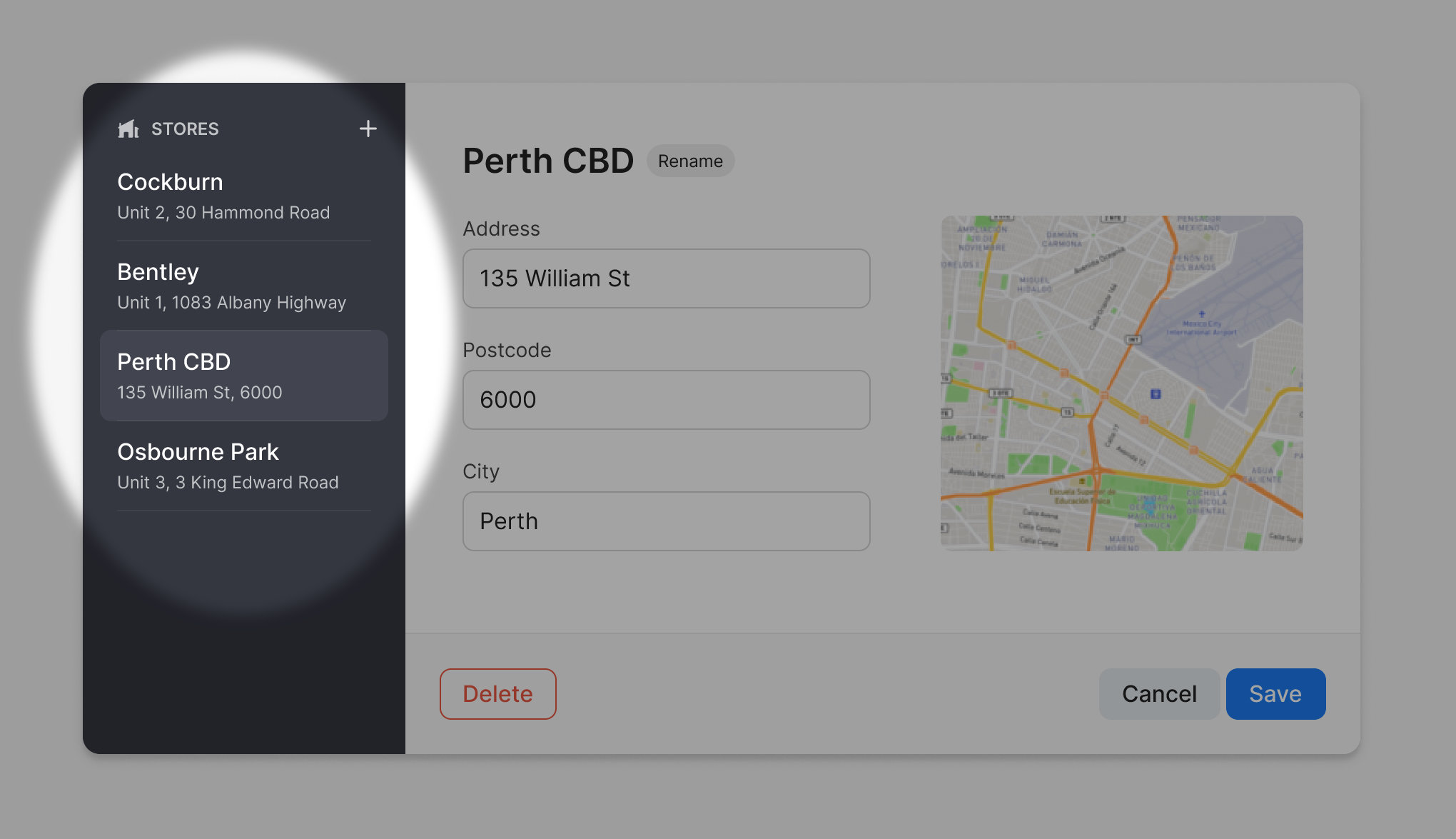 The stores are highlighted on the left
To get started, click on a store location from the sidebar. This will open the editor on the right, where you can view and modify more details about the store.
Editing store details
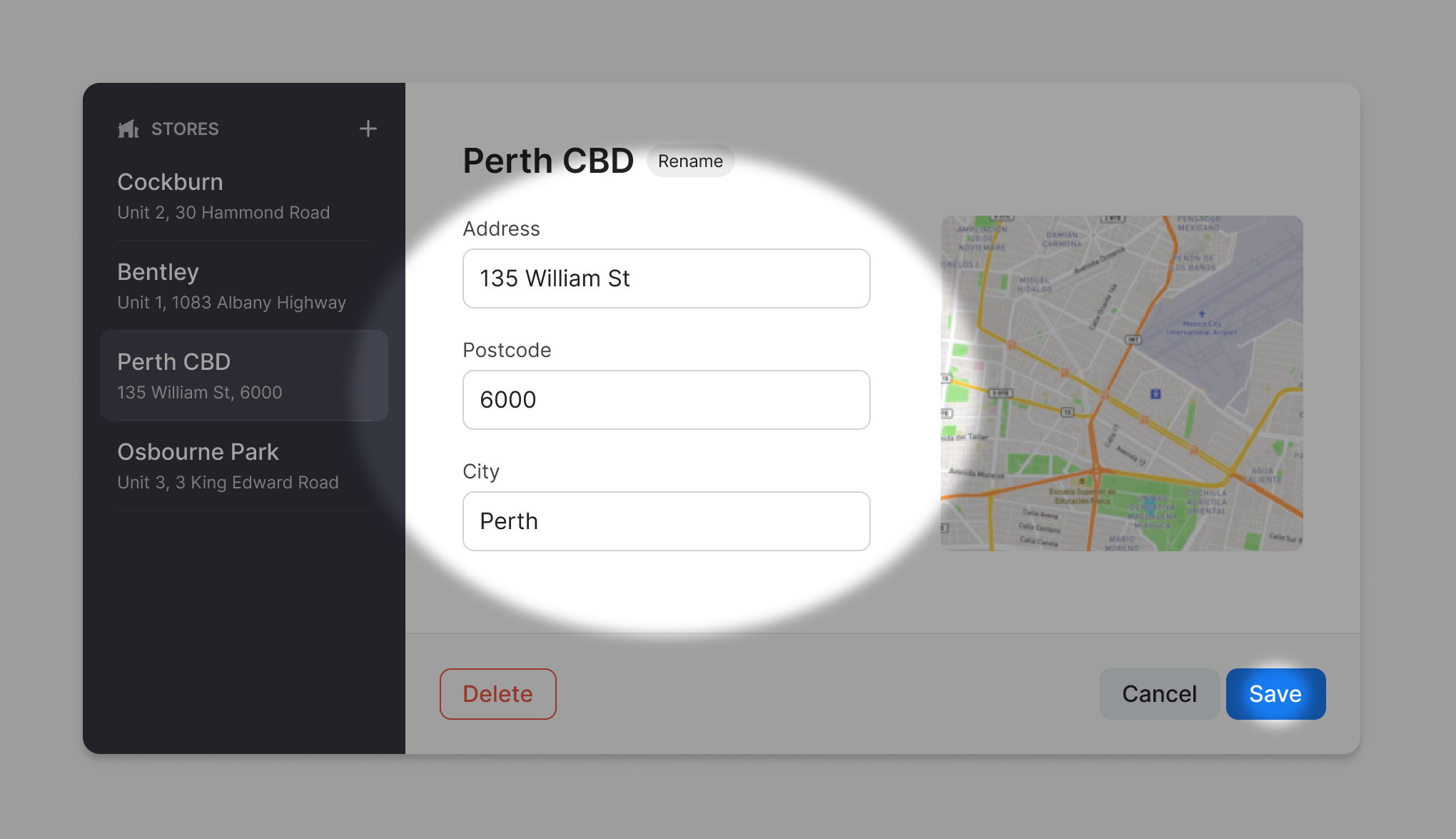 The edit fields are highlighted in the main section
Click rename next to the store name to change it. It allow you to edit the name, then press save to apply the change immediately.
Edit the store’s address, postcode, or city by typing in the fields. Make sure to press save once you are finished to apply the changes to the database.
Deleting stores
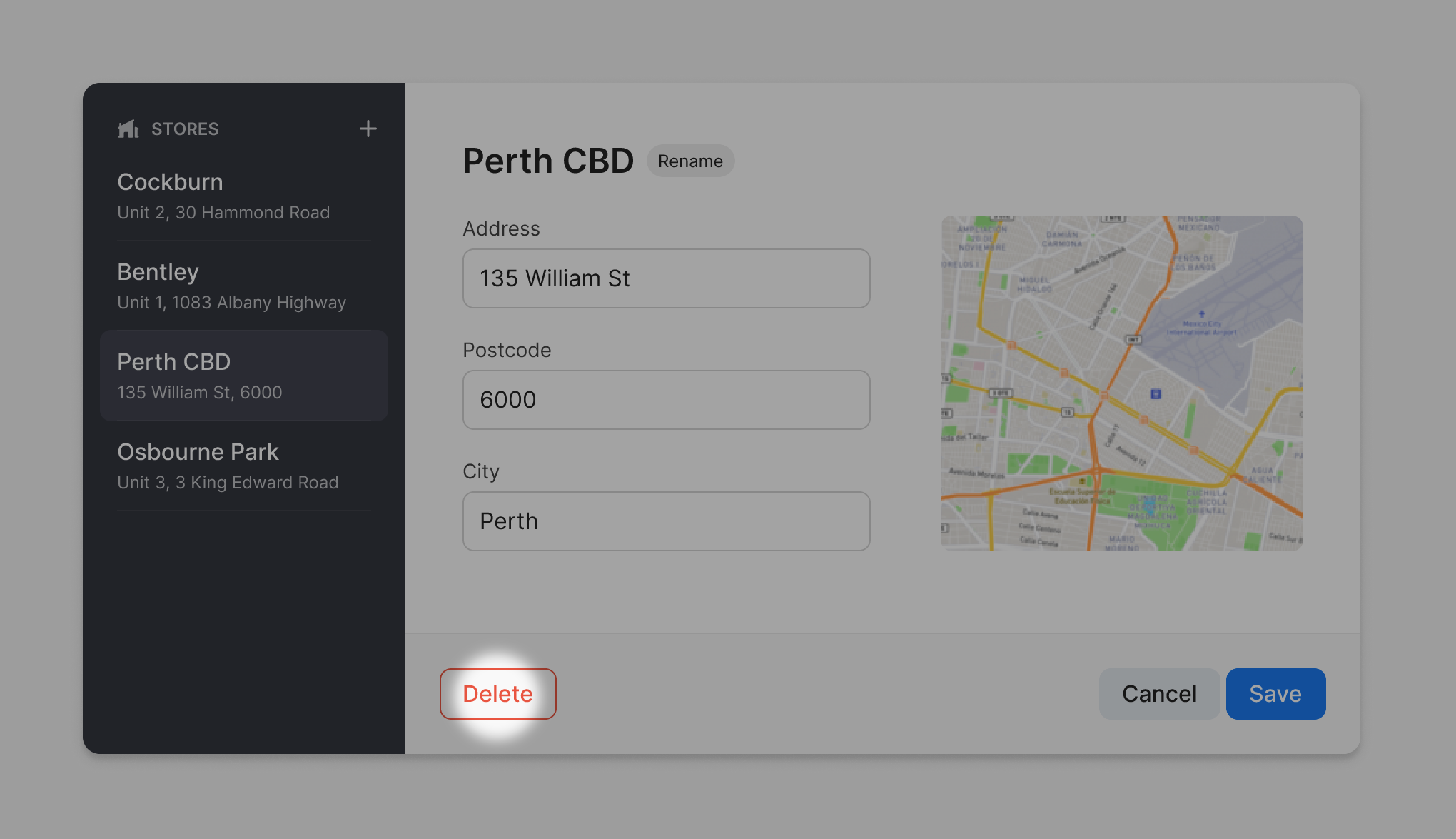 The delete button is highlighted at the bottom
Make sure you have a store selected first, and that it is the one you want to delete. Then click on the delete button in the bottom left. You will be asked to confirm the action, press ‘Ok’ to delete.
What next?
You can experiment with the other tables in the database using the playground.
Alternatively, you can go back to the implementation section of the report.
Jordan Rodrigues • 2023